# FaceBook Messenger

1. Log in to [Dashboard](https://app.orimon.ai/login) using your Google account/manual signup
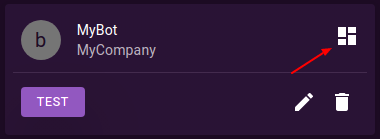
2. Once logged in, you should see an overview icon for your bot. Click on it to go to the bot's overview page.

<figure><img src="https://55912965-files.gitbook.io/~/files/v0/b/gitbook-x-prod.appspot.com/o/spaces%2FxUW02x9klXneNc1Bxtt6%2Fuploads%2Fp7SbtR2tA9h1opHIdIUS%2Foverview.png?alt=media&#x26;token=5dcdc871-3c99-4cec-bef9-92fb275ff2e0" alt=""><figcaption></figcaption></figure>

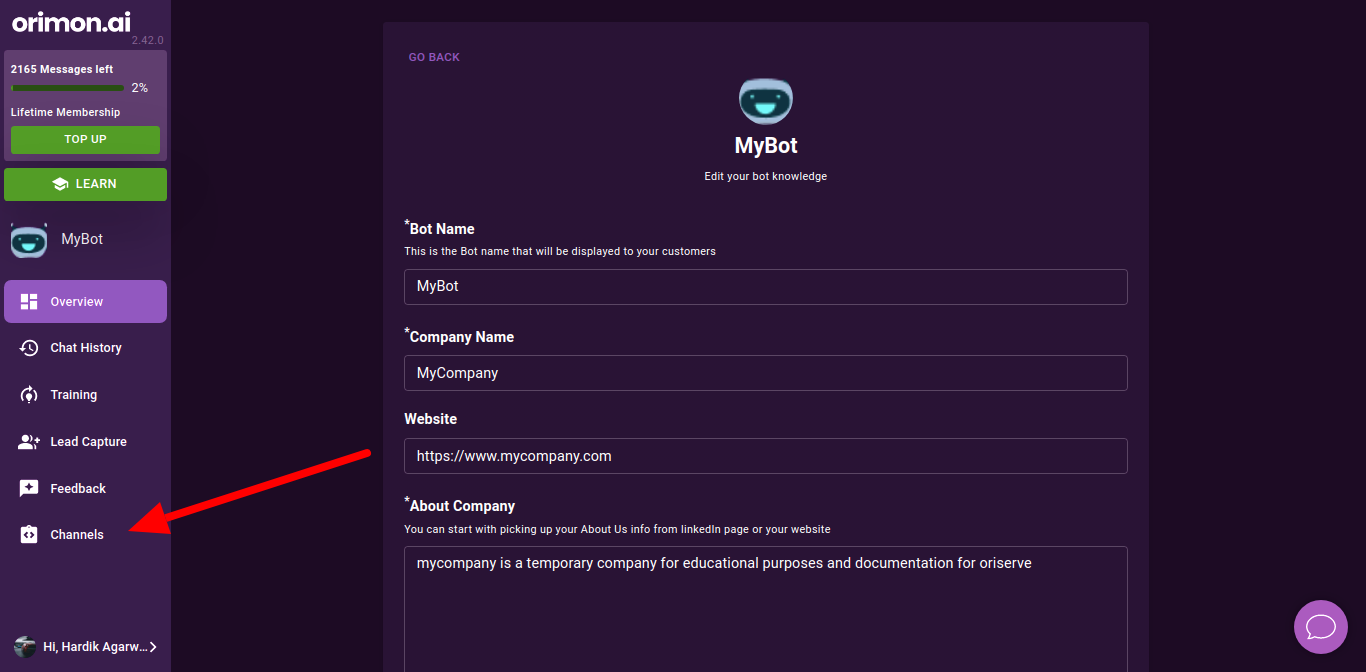
3. On the overview page, you will see several tabs. Look for the one labelled "Channels" and click on it.

<figure><img src="https://55912965-files.gitbook.io/~/files/v0/b/gitbook-x-prod.appspot.com/o/spaces%2FxUW02x9klXneNc1Bxtt6%2Fuploads%2F5050RCspQM9sUWhEcdfV%2FEdit-knowledge.png?alt=media&#x26;token=110f4dfb-60a4-4392-9e09-e9c606b2a9bd" alt=""><figcaption></figcaption></figure>

4. Select the "Facebook" tab.

<figure><img src="https://55912965-files.gitbook.io/~/files/v0/b/gitbook-x-prod.appspot.com/o/spaces%2FxUW02x9klXneNc1Bxtt6%2Fuploads%2FThWg1c9e1Hrub1DwVErE%2FChannels%20(8).png?alt=media&#x26;token=83b8c59c-e8af-42c5-ba81-cb268465b5df" alt=""><figcaption></figcaption></figure>

5. Click on the "Start Setup" button.

<figure><img src="https://55912965-files.gitbook.io/~/files/v0/b/gitbook-x-prod.appspot.com/o/spaces%2FxUW02x9klXneNc1Bxtt6%2Fuploads%2F1WUsjnTaPIK4WQE49kXX%2FChannels%20(10).png?alt=media&#x26;token=dba7c161-acbe-4b66-a518-0aff5cc69a80" alt=""><figcaption></figcaption></figure>

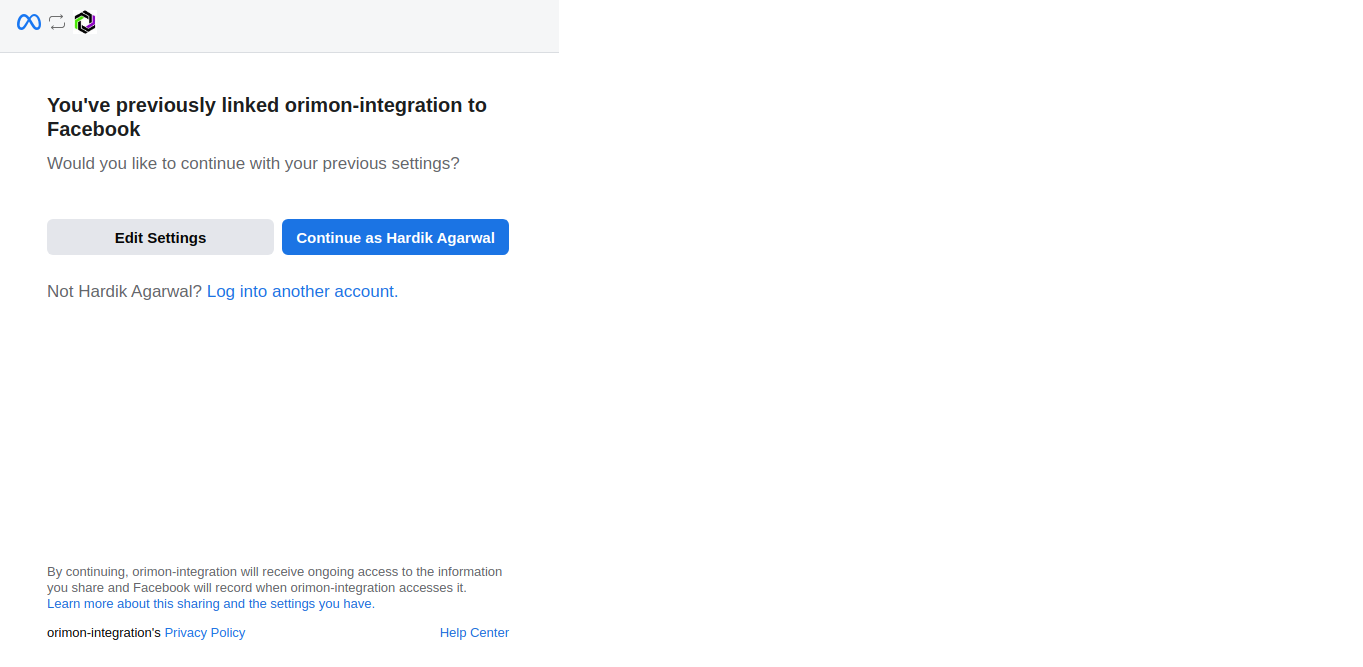
5. Log into your Facebook account.

<figure><img src="https://55912965-files.gitbook.io/~/files/v0/b/gitbook-x-prod.appspot.com/o/spaces%2FxUW02x9klXneNc1Bxtt6%2Fuploads%2FuWOMoqL1CcdIvK5W5m7G%2Fimage.png?alt=media&#x26;token=4662550f-f0b0-4a26-97ac-9d34bafe57af" alt=""><figcaption></figcaption></figure>

7. Select the Facebook page you want to connect with your bot and continue.
8. Your Facebook page has been set up, and it will be displayed on Orimon.

<figure><img src="https://55912965-files.gitbook.io/~/files/v0/b/gitbook-x-prod.appspot.com/o/spaces%2FxUW02x9klXneNc1Bxtt6%2Fuploads%2Fbh6OSit8bLfuGZlLKVvX%2FChannels%20(9).png?alt=media&#x26;token=333f5829-bad1-459f-8b0e-60025583145d" alt=""><figcaption></figcaption></figure>

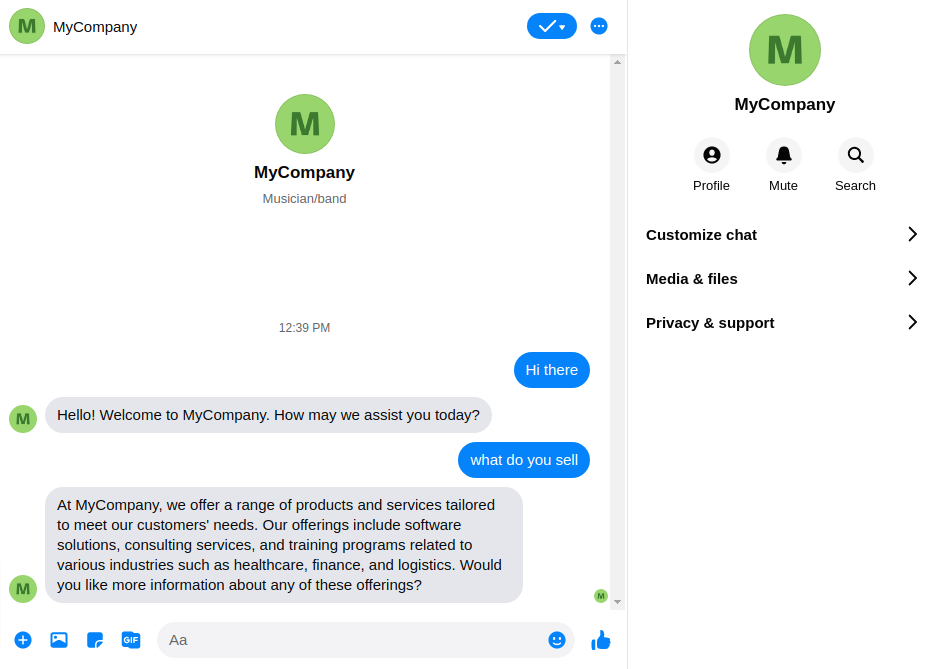
7. To test your bot, try sending a message on Facebook Messenger to your connected page.

<figure><img src="https://55912965-files.gitbook.io/~/files/v0/b/gitbook-x-prod.appspot.com/o/spaces%2FxUW02x9klXneNc1Bxtt6%2Fuploads%2FLW5SJKdVDadFzltegepf%2FMessenger.png?alt=media&#x26;token=445de095-3541-4583-91b7-30279f44faed" alt=""><figcaption></figcaption></figure>

By following these steps, you can successfully integrate your bot with Facebook Messenger and begin interacting with users on your website through the Facebook platform.

{% hint style="warning" %}
Please note that in order to integrate your bot with Facebook Messenger, you need to have a Facebook Business Page. The integration process is specifically designed for business pages, and personal profiles cannot be used for this purpose. So, before proceeding with the integration, ensure that you have a Facebook Business Page associated with your account.
{% endhint %}

<figure><img src="https://55912965-files.gitbook.io/~/files/v0/b/gitbook-x-prod.appspot.com/o/spaces%2FxUW02x9klXneNc1Bxtt6%2Fuploads%2F7mwQdZ8hO6qSSbnho7w9%2FChannels%20(13).png?alt=media&#x26;token=abecaca4-7957-4cd8-966f-2c8bb0d685f9" alt=""><figcaption></figcaption></figure>

{% hint style="info" %}
Once you have integrated your bot with Facebook Messenger, you have the option to enable or disable the bot's functionality on the platform. By clicking on the enable/disable toggle, you can control whether the bot responds to incoming messages on Facebook Messenger. If the bot is disabled, it will not respond to any messages received on the platform. This gives you the flexibility to activate or deactivate the bot's functionality as per your requirements.
{% endhint %}