# Telegram

1. Log in to [Dashboard](https://app.orimon.ai/login) using your Google account/manual signup
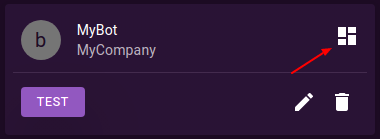
2. Once logged in, you should see an overview icon for your bot. Click on it to go to the bot's overview page.

<figure><img src="https://55912965-files.gitbook.io/~/files/v0/b/gitbook-x-prod.appspot.com/o/spaces%2FxUW02x9klXneNc1Bxtt6%2Fuploads%2Fp7SbtR2tA9h1opHIdIUS%2Foverview.png?alt=media&#x26;token=5dcdc871-3c99-4cec-bef9-92fb275ff2e0" alt=""><figcaption></figcaption></figure>

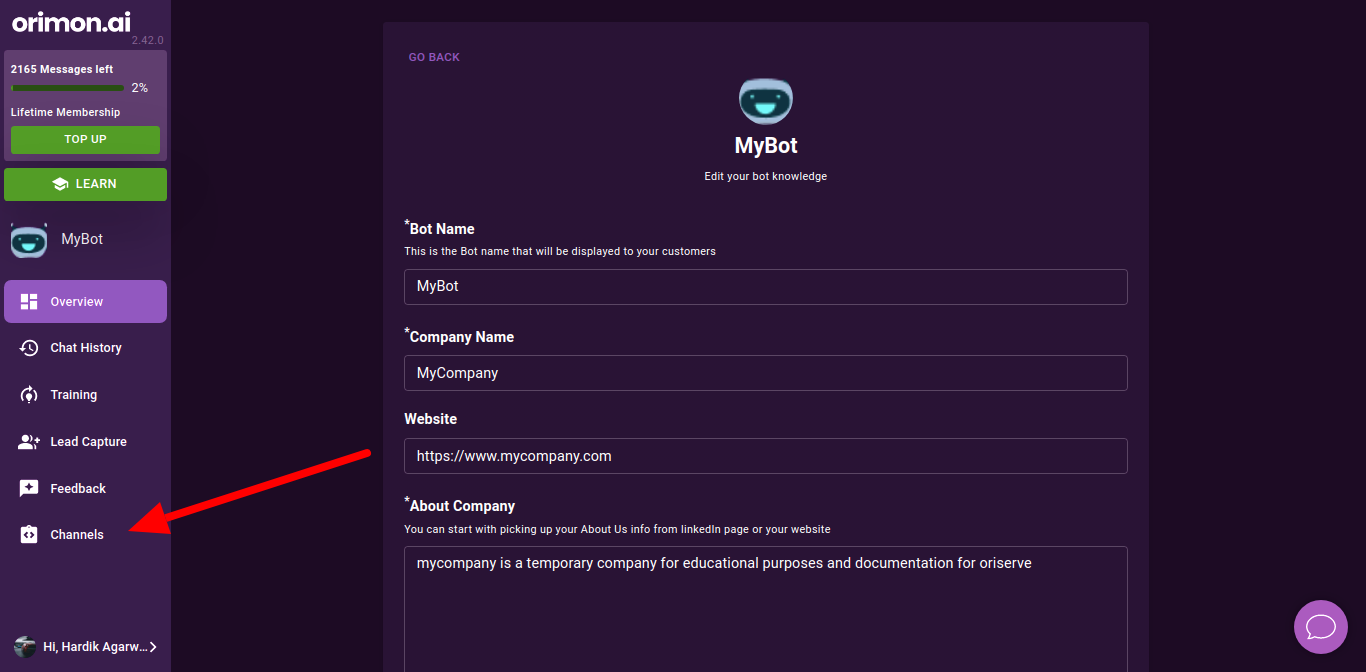
3. On the overview page, you will see several tabs. Look for the one labelled "Channels" and click on it.

<figure><img src="https://55912965-files.gitbook.io/~/files/v0/b/gitbook-x-prod.appspot.com/o/spaces%2FxUW02x9klXneNc1Bxtt6%2Fuploads%2F5050RCspQM9sUWhEcdfV%2FEdit-knowledge.png?alt=media&#x26;token=110f4dfb-60a4-4392-9e09-e9c606b2a9bd" alt=""><figcaption></figcaption></figure>

4. Select the "Telegram" tab.

<figure><img src="https://55912965-files.gitbook.io/~/files/v0/b/gitbook-x-prod.appspot.com/o/spaces%2FxUW02x9klXneNc1Bxtt6%2Fuploads%2F35tzdRe0ZknHyf4Fvrjm%2FChannels%20(3).png?alt=media&#x26;token=cf86001f-bc07-481d-a2b6-101d730bd97e" alt=""><figcaption></figcaption></figure>

5. Click on the provided "BotFather" link or search for "BotFather" in Telegram.

<figure><img src="https://55912965-files.gitbook.io/~/files/v0/b/gitbook-x-prod.appspot.com/o/spaces%2FxUW02x9klXneNc1Bxtt6%2Fuploads%2FIVcdiswC2WaHhuhUYGIU%2FChannels%20(5).png?alt=media&#x26;token=80f0ef61-2b69-4c2c-857b-32932c525e3d" alt=""><figcaption></figcaption></figure>

6. Send the command `/start` to BotFather to initiate the conversation.

<figure><img src="https://55912965-files.gitbook.io/~/files/v0/b/gitbook-x-prod.appspot.com/o/spaces%2FxUW02x9klXneNc1Bxtt6%2Fuploads%2FSCHFaxKWizrfvQOl6PcU%2FBotFather.png?alt=media&#x26;token=fdbdddeb-a241-43db-b760-810c4b72ba49" alt=""><figcaption></figcaption></figure>

7. Choose the `/newbot` command to create a new bot.
8. Provide a name for your bot.
9. Choose a unique username for your bot. It must end with the word "bot".
10. BotFather will provide you with a token. Copy the token as you will need it for integration with Orimon.

<figure><img src="https://55912965-files.gitbook.io/~/files/v0/b/gitbook-x-prod.appspot.com/o/spaces%2FxUW02x9klXneNc1Bxtt6%2Fuploads%2Fn8vVlozDw0YH32t99f9n%2FBotFather%20(2).png?alt=media&#x26;token=9e4377ce-f895-4ad3-8014-c0498161c7eb" alt=""><figcaption></figcaption></figure>

11. Go back to the Orimon app and paste the token into the input field and press integrate.

<figure><img src="https://55912965-files.gitbook.io/~/files/v0/b/gitbook-x-prod.appspot.com/o/spaces%2FxUW02x9klXneNc1Bxtt6%2Fuploads%2F2U8YuuCaNgG2bzcm2mx5%2FChannels%20(6).png?alt=media&#x26;token=ebc321e3-24b5-42f1-a960-af7f7310940a" alt=""><figcaption></figcaption></figure>

12. Your Telegram bot is now integrated and ready to use. You can search for your bot by its username or click on the link provided by BotFather to access your bot.

<figure><img src="https://55912965-files.gitbook.io/~/files/v0/b/gitbook-x-prod.appspot.com/o/spaces%2FxUW02x9klXneNc1Bxtt6%2Fuploads%2FssRJlyfOmKe4Vd7viksB%2FChannels%20(7).png?alt=media&#x26;token=7f740e9e-d4a7-4d9d-a372-4373bd7337c8" alt=""><figcaption></figcaption></figure>

13. To use your bot in a personal chat, start sending messages directly to the bot.

<figure><img src="https://55912965-files.gitbook.io/~/files/v0/b/gitbook-x-prod.appspot.com/o/spaces%2FxUW02x9klXneNc1Bxtt6%2Fuploads%2F9zHiVwXtFG1KcDsD9NLG%2FMyCompany.png?alt=media&#x26;token=8d030833-bcfd-4ae2-ad09-cc1a26e59ca2" alt=""><figcaption></figcaption></figure>

14. To use your bot in groups, add it to the desired group, promote it to admin, and then start talking to the bot by tagging it using `@botusername`.

<figure><img src="https://55912965-files.gitbook.io/~/files/v0/b/gitbook-x-prod.appspot.com/o/spaces%2FxUW02x9klXneNc1Bxtt6%2Fuploads%2Fg5WSgPXdzV53uvNTU4Fc%2FMyCompany%20(1).png?alt=media&#x26;token=e816393b-9317-46c2-b303-bbe5be9650f9" alt=""><figcaption></figcaption></figure>

<figure><img src="https://55912965-files.gitbook.io/~/files/v0/b/gitbook-x-prod.appspot.com/o/spaces%2FxUW02x9klXneNc1Bxtt6%2Fuploads%2F9CTTMBXtAPt2Vy3chtrD%2FMyCompany%20(2).png?alt=media&#x26;token=a00def1d-fcb4-4480-9446-4c4e148d265e" alt=""><figcaption></figcaption></figure>

Following these steps will enable you to integrate and use your bot on Telegram.

{% hint style="warning" %}
Please note that in order to use your bot in groups on Telegram, it is important to promote the bot to an administrator. Without promoting the bot to admin, it won't have the necessary permissions to function properly within groups. So, after adding the bot to a group, make sure to promote it to admin to ensure it can interact and respond to messages effectively.
{% endhint %}

{% hint style="info" %}
After integrating your bot with Telegram, you have the flexibility to enable or disable the bot's functionality. By toggling the enable/disable switch, you can control whether the bot responds to incoming messages on Telegram. If the bot is disabled, it will not respond to any messages.

Additionally, if you wish to integrate a different Telegram bot or update the token for any reason, you have the option to change the token. Simply enter the new token in the provided input field and save the changes. This allows you to switch between different Telegram bots or update the integration as needed.
{% endhint %}
<figure><img src="https://55912965-files.gitbook.io/~/files/v0/b/gitbook-x-prod.appspot.com/o/spaces%2FxUW02x9klXneNc1Bxtt6%2Fuploads%2FFyJld6OVQJt0XE43GL4X%2FChannels%20(12).png?alt=media&#x26;token=df6b240c-e151-494b-b99a-dd543bd696d7" alt=""><figcaption></figcaption></figure>
